How to Kill a Process Running on a Port (Mac, Windows & Linux)
How to Kill a Process Running on a Port in MacOS, Windows, Linux Because nothing ruins your morning like “Port 3000 is already in use.” You fire up your dev server. You’ve had your…
Vishal Kr. Singh
Because nothing ruins your morning like “Port 3000 is already in use.”
You fire up your dev server. You’ve had your coffee. You’re ready to ship something.
And then — that error. You know the one:
Error: listen EADDRINUSE: address already in use :::3000
Or maybe it’s port 8080. Or 5432. Or 8000. Doesn’t matter — the feeling is the same. Something is squatting on your port and refuses to leave.
This has happened to every developer, at every level, on every machine. The good news? Killing the process is a five-second job once you know the right commands. The bad news? The commands are different depending on whether you’re on Mac, Linux, or Windows — which is why you probably Googled this at 9am.
Let’s fix it, for all three.
Why Does This Even Happen?
Before jumping to solutions — it helps to know what’s going on.
Every time a process (a server, a database, an app) starts up, it “binds” to a port. That’s how your operating system knows where to send incoming traffic. When that process crashes or closes uncleanly, the OS sometimes doesn’t release the port right away. So next time you try to start something on the same port, the OS goes: “sorry, occupied.”
Other times, you just have an old terminal window somewhere with a server still running. Or a zombie process. Or Docker. It’s almost always one of those.
On Mac (and Linux — mostly the same)

Step 1: Find what’s using the port
Use lsof — which stands for "list open files." On Unix systems, everything is a file, including network ports.
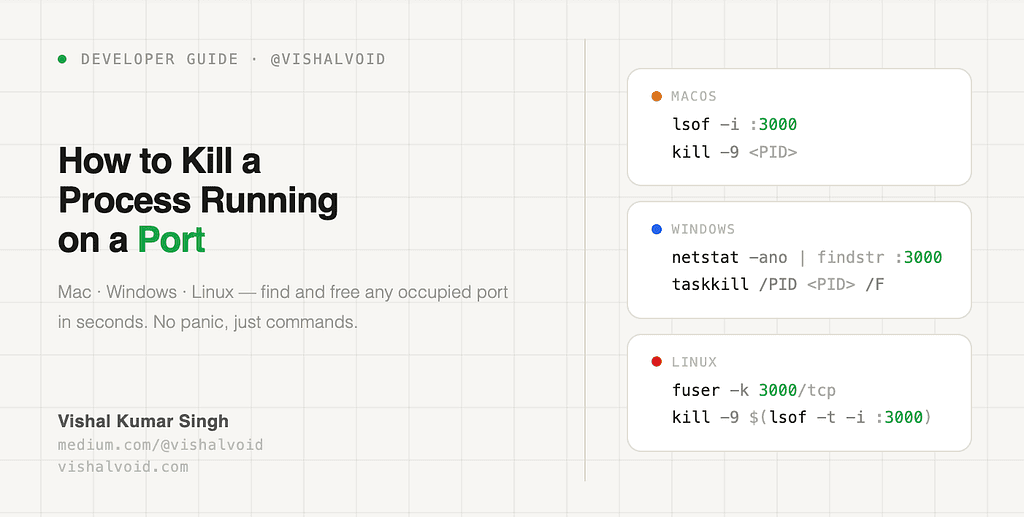
lsof -i :3000
You’ll get something like this:
COMMAND   PID    USER   FD   TYPE             DEVICE SIZE/OFF NODE NAME
node     8821   john   23u  IPv6 0x9f3b2a...      0t0  TCP *:3000 (LISTEN)
The important column here is PID — that’s the Process ID. In this example, it’s 8821.
Step 2: Kill it
kill -9 8821
The -9 flag sends a SIGKILL signal, which is the forceful version. The process doesn't get a chance to clean up — it just dies. Use this when a regular kill (which sends SIGTERM) doesn't work.
One-liner version (Mac/Linux)
If you just want to nuke whatever’s on a port without looking up the PID first:
kill -9 $(lsof -t -i :3000)
The -t flag on lsof makes it output just the PID — no headers, no extra columns. The $(...) syntax runs that as a subcommand and passes the result directly to kill. Clean and fast.
Using fuser (Linux, not always on Mac)
On most Linux distros, you can use fuser:
fuser -k 3000/tcp
This finds whatever is using TCP port 3000 and kills it directly. One command. No need to look up PIDs. The -k flag means kill.
On Windows
Windows doesn’t have lsof or fuser, but it has its own tools that get the job done.

Step 1: Find the PID
Open Command Prompt (or PowerShell) and run:
netstat -ano | findstr :3000
You’ll see something like:
TCP 0.0.0.0:3000 0.0.0.0:0 LISTENING 12456
That last number — 12456 — is the PID.
Step 2: Kill it by PID
taskkill /PID 12456 /F
The /F flag forces it. Without /F, Windows will politely ask the process to stop — which doesn't always work. With /F, it's done.
PowerShell one-liner
If you prefer PowerShell (and you should — it’s much more powerful):
Get-Process -Id (Get-NetTCPConnection -LocalPort 3000).OwningProcess | Stop-Process -Force
This chains two commands:
- Get-NetTCPConnection -LocalPort 3000 finds the connection on port 3000 and returns the owning process ID
- Get-Process -Id (...) fetches the process object for that ID
- Stop-Process -Force kills it
It looks intimidating, but it’s just one line. Paste it in and move on.
Quick Reference — All Three Platforms
Platform Find PID Kill by PID One-liner Mac lsof -i :PORT kill -9 PID kill -9 $(lsof -t -i :PORT) Linux lsof -i :PORT or ss -tulpn | grep PORT kill -9 PID fuser -k PORT/tcp Windows netstat -ano | findstr :PORT taskkill /PID [pid] /F PowerShell one-liner above
Bonus: What if lsof shows nothing?
Sometimes you run lsof -i :3000 and get... nothing. No output. But you're still getting "port already in use."
A few things to check:
1. You might be on the wrong port. Double-check the exact port from the error message.
2. The process might be owned by root. Try:
sudo lsof -i :3000
Root processes won’t always show up in a regular lsof.
3. On Linux, try ss instead of lsof:
ss -tulpn | grep :3000
ss is the modern replacement for netstat and often more reliable. It'll show you the process name and PID right in the output.
My Workflow for This
Honestly, I’ve had this happen enough times that I added a small alias to my .zshrc:

alias killport='function _killport(){ kill -9 $(lsof -t -i :$1); }; _killport'
Now I just type killport 3000 and it's done. Takes about two seconds. If you find yourself dealing with this regularly, something like this will save you a lot of time.
On Windows, you can add a PowerShell function to your profile ($PROFILE) that does the same thing:
function killport {
    param($port)
    $pid = (Get-NetTCPConnection -LocalPort $port).OwningProcess
    Stop-Process -Id $pid -Force
    Write-Host "Killed process on port $port"
}
After adding this, restart your PowerShell session and use it like: killport 3000.
Wrapping Up
Port conflicts are one of those things that feel confusing the first time and trivially easy the tenth. The key commands to internalize:
- Mac/Linux: lsof -i :PORT to find, kill -9 PID to kill — or the one-liner.
- Linux: fuser -k PORT/tcp for when you want to skip finding the PID altogether.
- Windows: netstat -ano | findstr :PORT, then taskkill /PID [pid] /F.
Once these are in your muscle memory, you’ll spend maybe 10 seconds on this next time instead of 10 minutes.
Now go ship something.
Found this useful? Share it with someone who’s been staring at that “port already in use” error for longer than they’d like to admit.
~ read more such articles at https://vishalvoid.com